Welcome to the LAMP Reader app

Speed up and scale up manual plate inspection and result recording.

A project to help reduce manual data entry when recording the results of colorimetric tests on spot/micro-plates.

Want to help us test the app and improve classifications?

Step One: Download the app

Download the Lamp Test app on Android or iOS

Step Two: Name & Set up plate

Name the plate you’re going to capture (If you can’t think of one, call it’s Pablo’s Office)

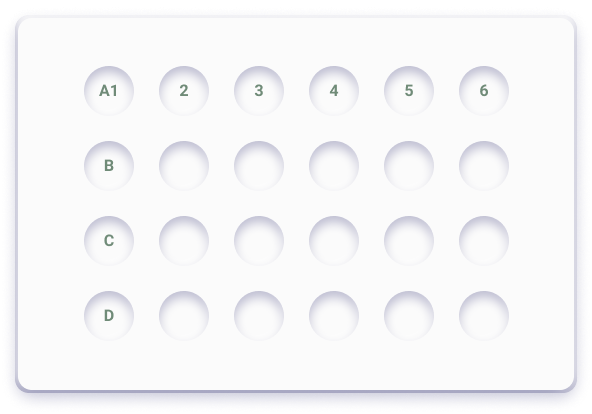
Set up a plate that has 4 rows and 6 columns (a bit like this) and tap done ✅

Step Three: Capture the plate

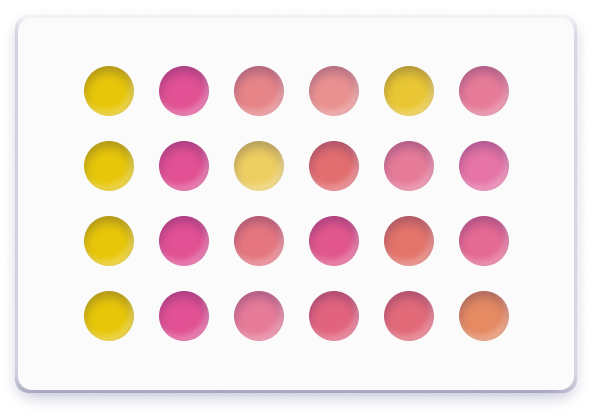
Imagine the below plate is your finished sample. Capture this plate with the in-app camera.

Pro tip: You only need to make sure the four corners roughly align with the plate - you can re-adjust once you've taken the photo.

Step Four: Set the control wells

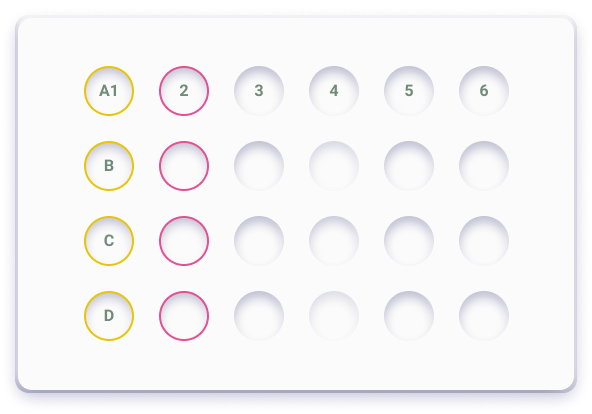
While your image processes. Label the control wells. In this example we used the first two colums as controls.

Set column 1 as your positive control A1:D1
‍
Set column 2 as your negative control A2:D2

Tap done ✅

Step 5: Review your results

Have a look at the results.

In this example you should have 2 positive cases and 14 negative cases, in addition to the 8 control wells.

If you have wells that appear grey, it could be because of the original picture quality. So you might want to set up a new plate and try again.
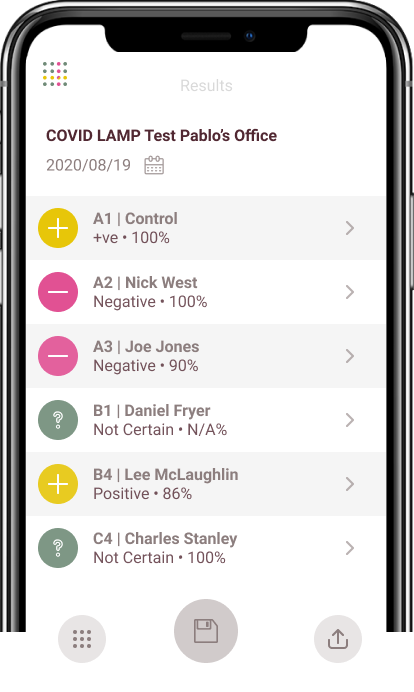
If your results came back inconclusive - try printing out the PDF below and testing it out on the three examples shown.
‍
Printing it out should remove any interference from your screen with the app's camera.

Each plate has 3 positive wells in addition to the control wells.

Try it out!

Did it work?

Let us know how you got on - especially if you had any problems.